Back to School with 
Everything you need to start the year strong with Tynker for Schools: classes set up, first lessons ready, and confident before students log in.

Four steps to a smooth first week
✓ Your back-to-school checklist — four steps to a smooth first week
1Set Up Your ClassesCreate classes and add students
Set Up Your Classes
Get your rosters ready: create a class for each period and attach its course. It takes a couple of minutes, and you can add students by class code, bulk CSV import, or sync straight from Google Classroom, Clever, or ClassLink.
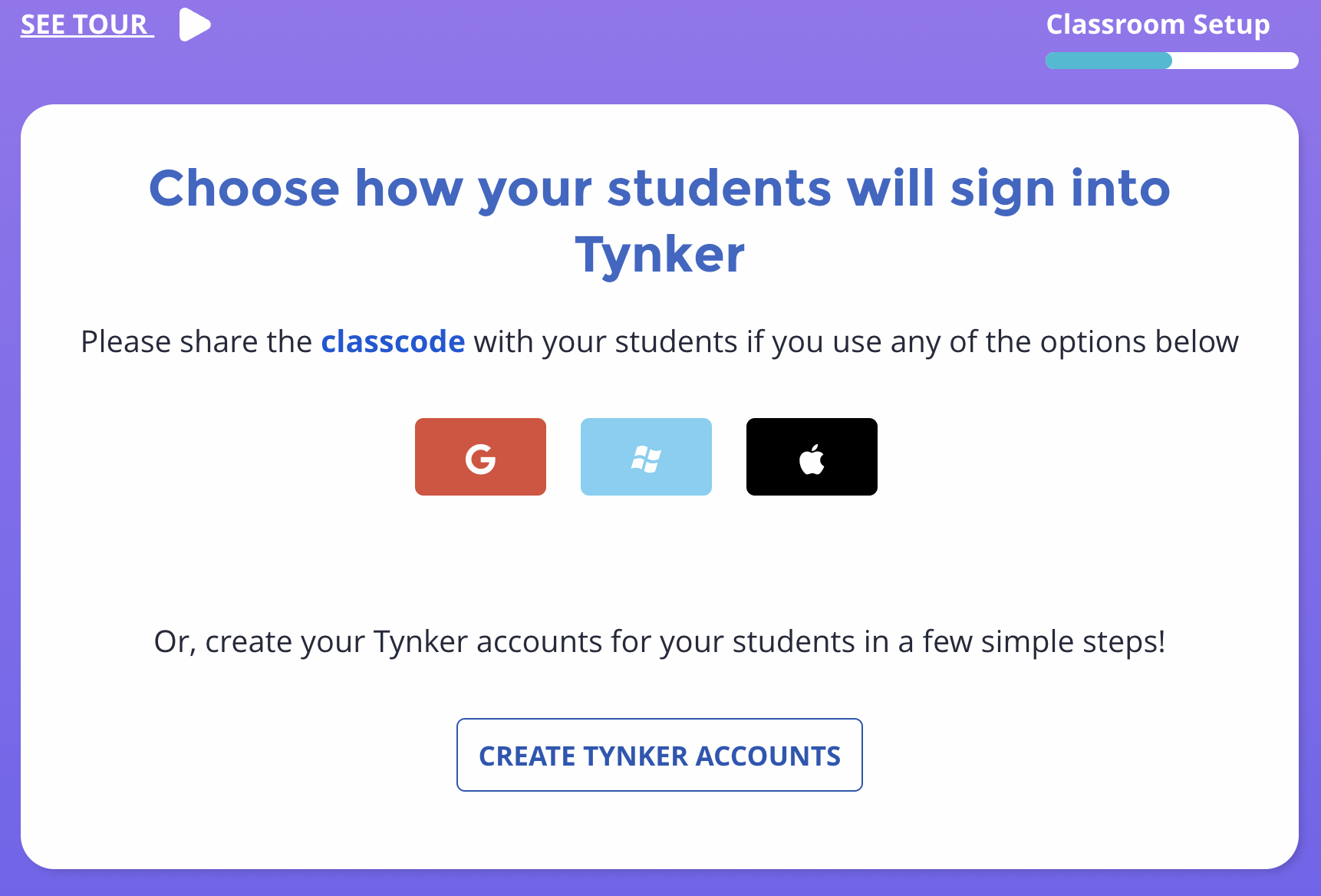
Multiple ways to add students
Students join in seconds at tynker.com/classcode using their Google, Clever, or ClassLink logins. Prefer to set it up yourself? Bulk-import a roster with a CSV, or let Tynker generate usernames and passwords with a custom prefix.
2Choose Your CoursesBrowse grade-band courses and curriculum maps
Choose Your Courses
Pick what you're teaching this year from Tynker's K–8 School plan. Courses are organized by grade and subject, so students can grow from picture-based icon coding all the way to Python, JavaScript, and Java.
The courses shown below are examples, not the only options. Explore each grade band to find more courses for your students.
Early Elementary
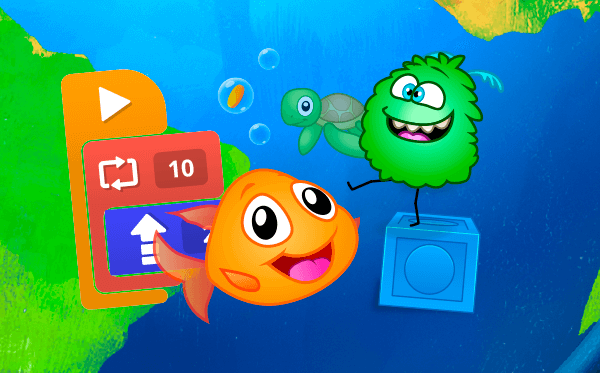
Upper Elementary
Where students can learn
Tynker is available on the web, the Tynker app, and the Tynker Junior app, so students may access content differently depending on their devices. Filter the catalog by grade, subject, and device to see what’s available for your students.

Curriculum maps
Not sure where to start? These grade-band maps are flexible recommendation guides to help you choose a starting point. Here’s the Grades 3–5 map as an example.

- ✓These are recommendation guides, not a required scope and sequence — teach in the order that fits your students.
- ✓There's intentional overlap between grades so you have flexibility in what you assign.
- ✓Supplemental courses at the bottom of each map help you fill instructional hours across the grade band.
3Plan additional first week activitiesFind engaging supplemental activities and projects
Plan additional first week activities
Make the first week even more engaging with supplemental activities and projects from Tynker. The free Hour of Code library covers topics including AI, NASA, STEM, and more, with new projects added for the 2026–27 school year.
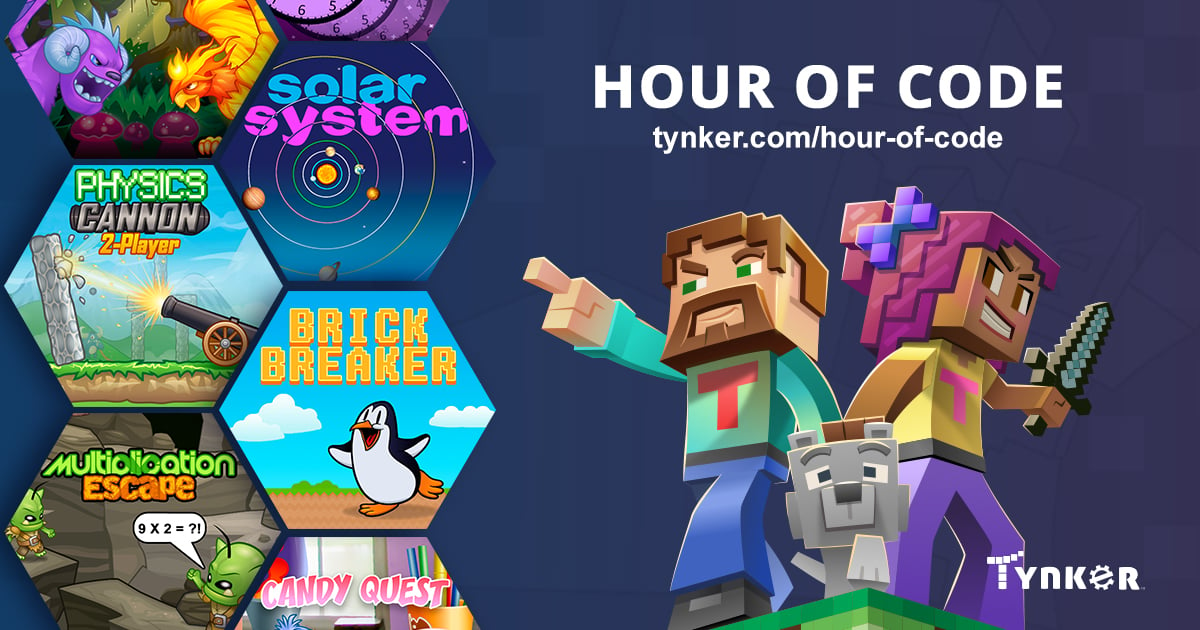
Explore Hour of Code
Browse the full collection of supplemental activities and projects for your students.
Explore the Hour of Code library →
NASA Return to the Moon
Invite students to explore space and coding through this NASA-themed Hour of Code activity.
Try the NASA project →Rotating weekly projects
Separate from the Hour of Code library, these rotating weekly projects give students another way to practice coding throughout the year.
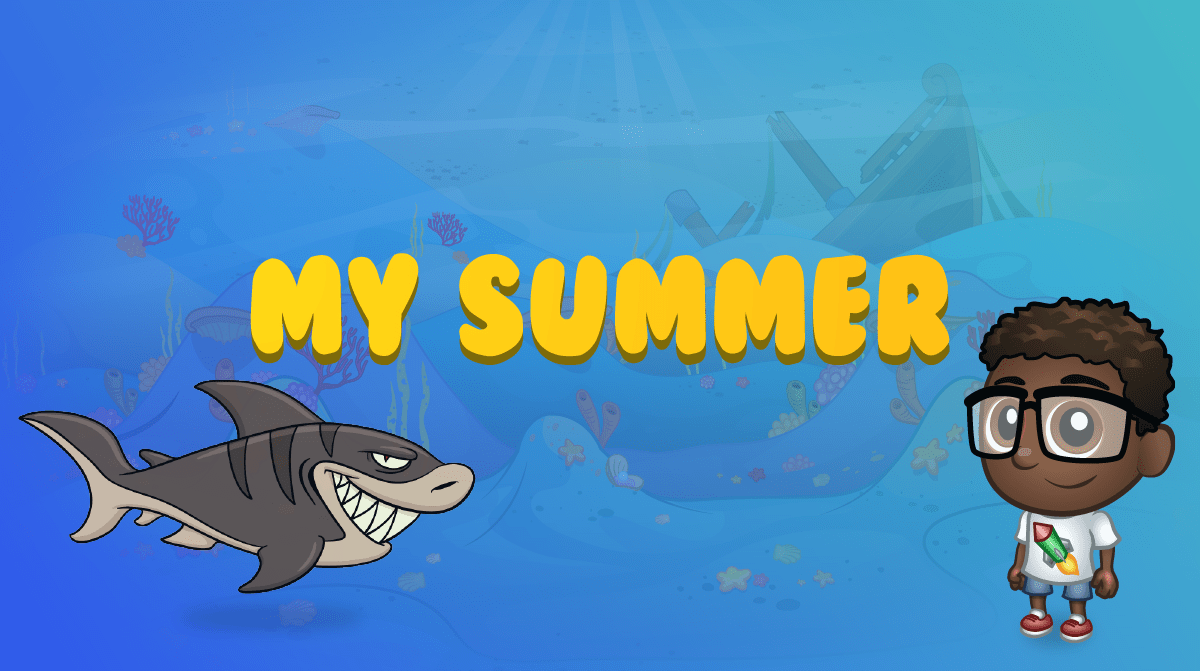
My Summer Weekly Project
A creative project for students to share their summer stories and ideas through code.
Open My Summer →
My Summer HTML Weekly Project
A web-based version that lets students build and share a summer-themed HTML project.
Open My Summer HTML →4Explore the PD membershipNew for 2026–27 · On-demand professional development
Enroll in the Tynker PD Membership
★ New for 2026–27 — featured section
On-demand training for K–8 educators. The Tynker PD Membership is a year-round license to a focused library of instructional videos — built to help you get started with Tynker, improve your classroom implementation, and grow as a computer science teacher.
Because it's on demand, it fits the way school actually works: watch what you need the week before you teach it, come back mid-year when you're ready to go deeper, and share it across a team without scheduling a single sub day.
Workshops
Build confidence with live and on-demand training designed to help you teach with Tynker.
Explore workshops →PD Membership
Access a focused library of on-demand instructional videos to get started, improve implementation, and grow as a computer science teacher.
Explore PD Membership →Free Webinars
Join free webinars for practical guidance, fresh ideas, and support throughout the school year.
See free webinars →
3Check Out the Help CenterFind setup guides and quick answers
Check Out the Help Center
Have a question as you set up? The Tynker for Schools Help Center answers it. Here are the most common getting-started questions, grouped and linked so you can jump straight to the article you need.
Classes & rostering
Student & teacher logins
Free vs Premium
Start free with the starter courses. The K–8 School plan adds the full catalog, lesson plans, and the dashboards that give you time back across the year.
Free
- ✓ 4 courses
- ✓ Introductory coding
- ✓ Lesson progress, reports, and certificates
- ✓ Standard email support
Premium
- ✓ 48+ courses across icon-based coding, block coding, text coding, and STEM
- ✓ Complete K–8 pathway built for every grade level
- ✓ Quiz gradebook, mastery tracking, standards, and attendance tracking
- ✓ Priority support + dedicated Customer Success team member and Account Specialist
You're Never on Your Own
However the year unfolds, help is one click away.
FAQ, Help & School Support
Find quick answers in the Help Center, or email the Tynker for Schools team at schools@tynker.com.